> ## Documentation Index
> Fetch the complete documentation index at: https://docs.nijta.com/llms.txt
> Use this file to discover all available pages before exploring further.
# Voice Harbor Plugins
> Enjoy Voice Harbor inside Avid Pro Tools
## AAX Plugin Release
First public release of the Voice Harbor AAX plugin by Nijta, providing advanced voice anonymization for media workflows.
Voice Harbor delivers studio-grade anonymization while preserving vocal naturalness, enabling compliant use of sensitive audio under global privacy regulations.
### Features
* 🌍 Multilingual support: English, German, French, Italian, and Spanish
* ⚙️ Selective voice attribute control: modify or preserve gender, age group, and emotion after anonymization
* ⚡ Lightning-fast performance: \~0.25× real-time processing speed
* 🎧 Production-grade audio quality output for seamless integration in broadcast and post-production pipelines
* 🔒 Regulatory compliance: GDPR / EU AI Act / HIPAA / CCPA-ready anonymization
Automatically redact biometric identifiers from audio for privacy compliance.
***
## Installation Guide
### Step 1 – Download the Plugin
Go to [Voice Harbor Plugins](https://voiceharbor.ai) and download the **Voice Harbor AAX plugin**.
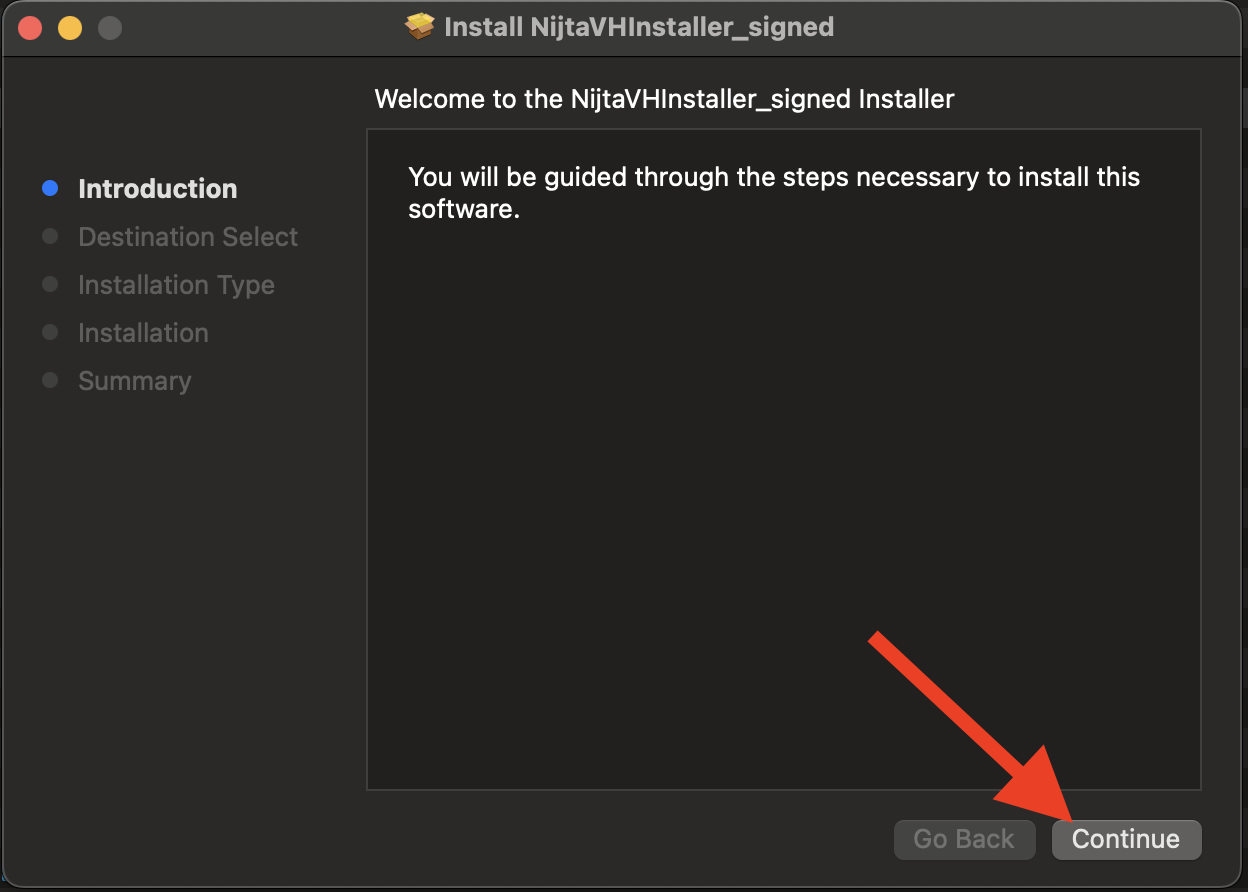
### Step 2 – Run the Installer
Double-click the package `VoiceHarbor-ProTools-macOS.pkg` to start installation.
 ### Step 3 – Authorize Installation
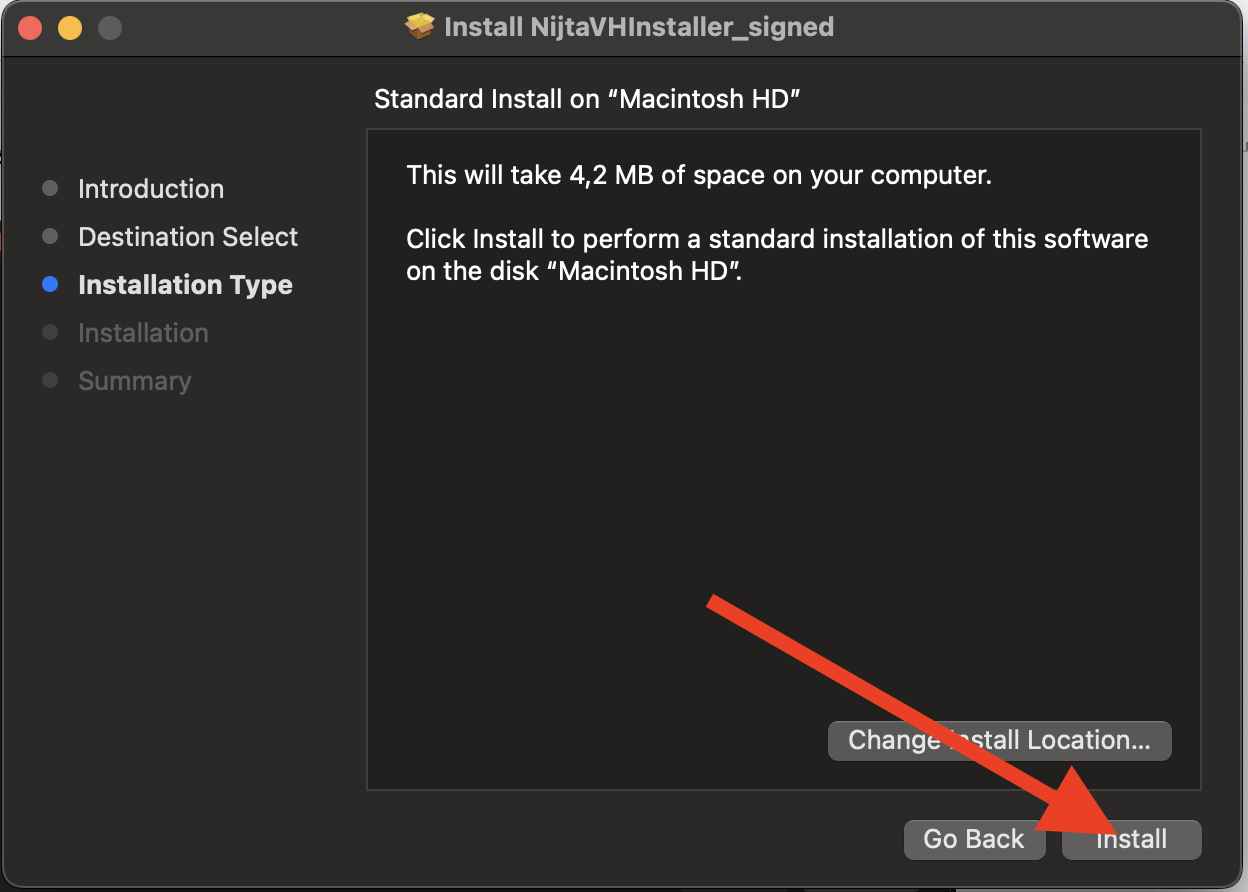
Enter your macOS password to complete the installation process and close the installer window.
### Step 3 – Authorize Installation
Enter your macOS password to complete the installation process and close the installer window.
 ***
## Usage in Avid Pro Tools
### Step 1 – Launch Pro Tools
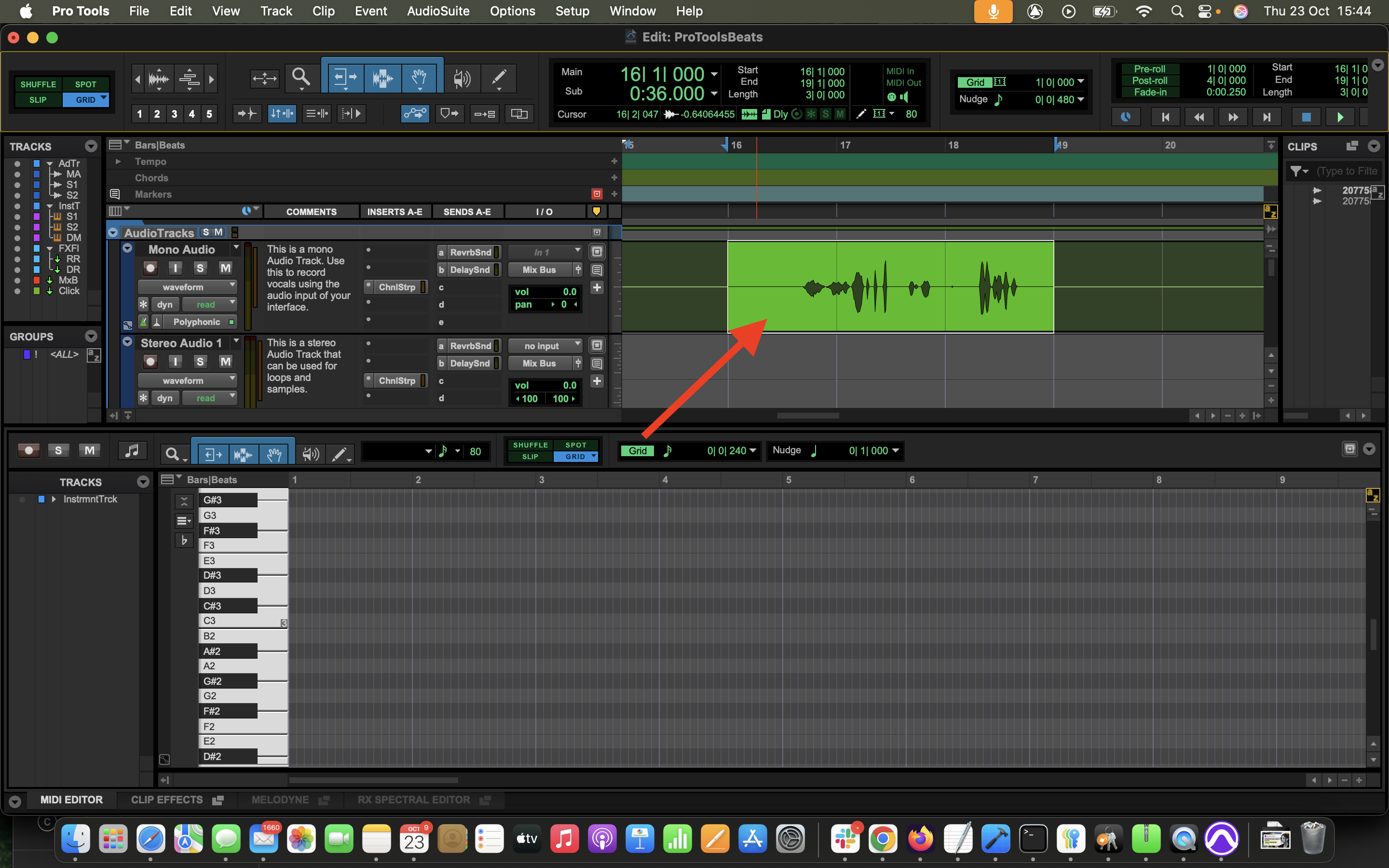
Open the **Avid Pro Tools** app and drag an audio file into the Pro Tools timeline.
> 💡 *Hint:* Highlight the region of audio you wish to anonymize.
>
>
***
## Usage in Avid Pro Tools
### Step 1 – Launch Pro Tools
Open the **Avid Pro Tools** app and drag an audio file into the Pro Tools timeline.
> 💡 *Hint:* Highlight the region of audio you wish to anonymize.
>
>  ### Step 2 – Open the Plugin
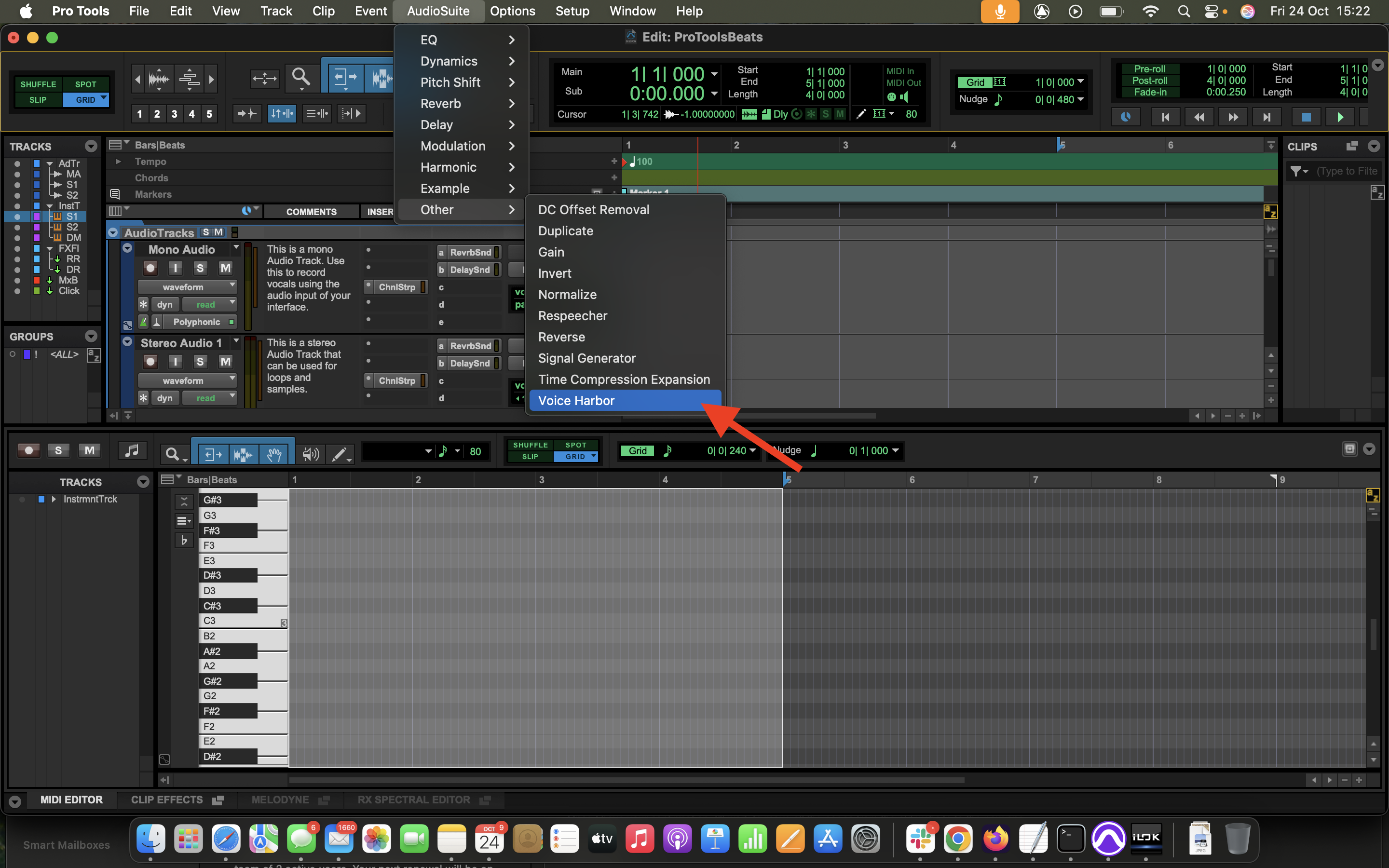
Navigate to **AudioSuite → Other → Voice Harbor**.
### Step 2 – Open the Plugin
Navigate to **AudioSuite → Other → Voice Harbor**.
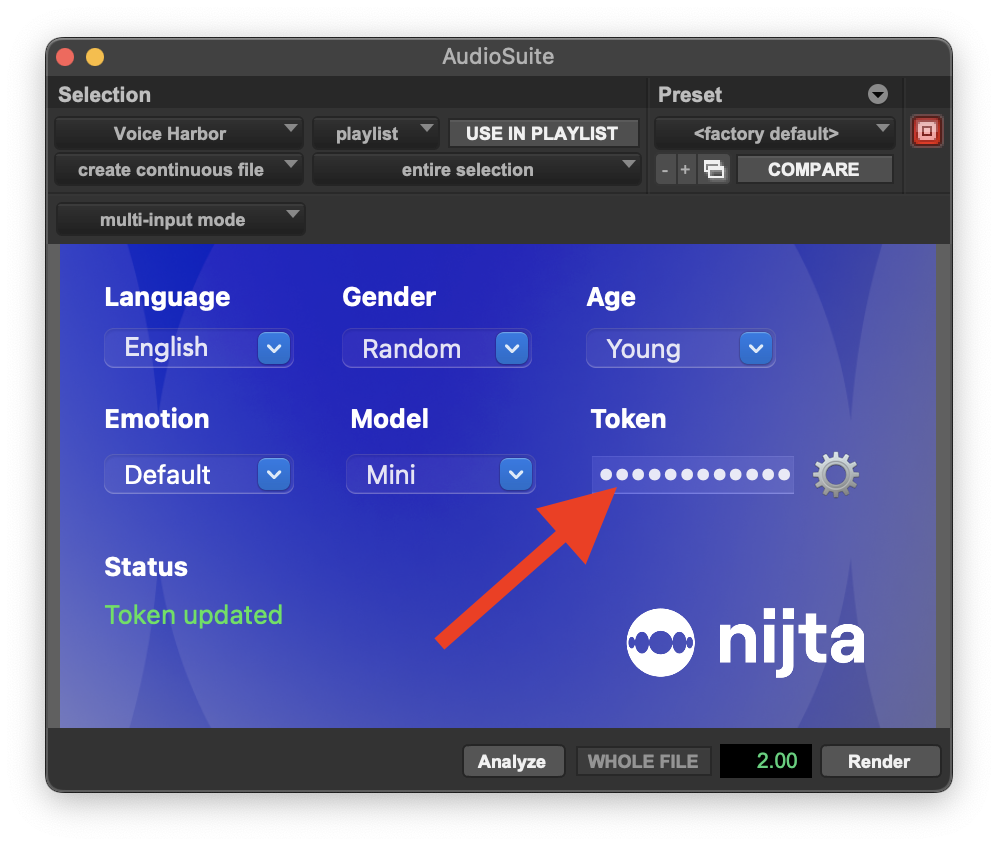
 ### Step 3 – Add Your Token
Paste your **developer token** into the plugin window.
> 💡 *Hint:* If you don’t have a token, click the ⚙️ icon next to the input box to open [voiceharbor.ai](https://voiceharbor.ai) and generate one.\\
>
>
### Step 3 – Add Your Token
Paste your **developer token** into the plugin window.
> 💡 *Hint:* If you don’t have a token, click the ⚙️ icon next to the input box to open [voiceharbor.ai](https://voiceharbor.ai) and generate one.\\
>
>  ### Step 4 – Configure Redaction Parameters
Use the dropdowns to choose:
* **Language**
* **Gender**
* **Age**
* **Emotion**
* **Model**
Then click **Render** to anonymize the selected segment.\\
### Step 4 – Configure Redaction Parameters
Use the dropdowns to choose:
* **Language**
* **Gender**
* **Age**
* **Emotion**
* **Model**
Then click **Render** to anonymize the selected segment.\\
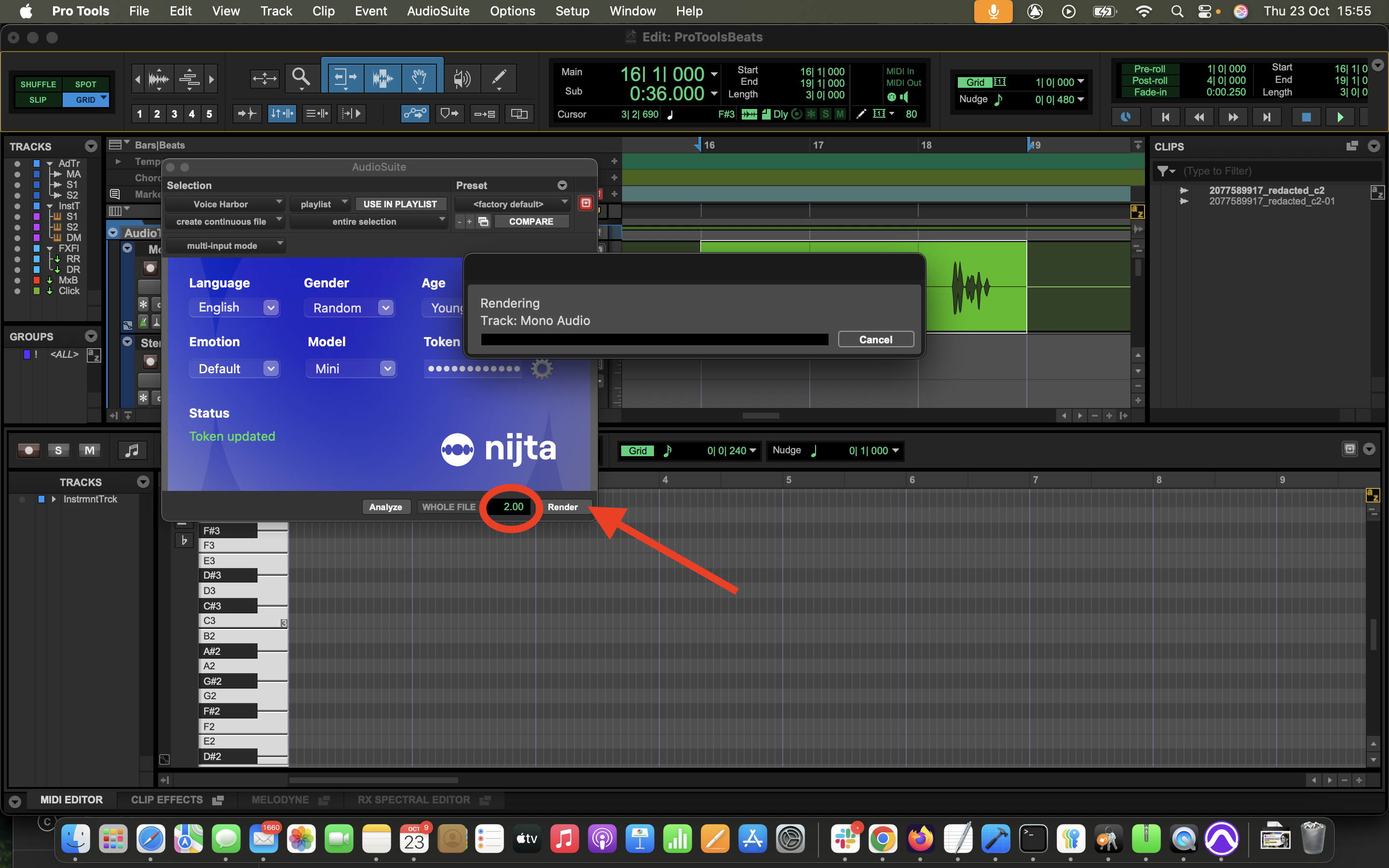 > 💡 *Hint:* The number beside **Render** controls the “collar” (extra buffer) around your selection.\
> Set to `0` if you want only your selected segment to be anonymized.
### Step 5 – Review the Output
A new anonymized clip appears in the **Clips** sidebar.\\
> 💡 *Hint:* The number beside **Render** controls the “collar” (extra buffer) around your selection.\
> Set to `0` if you want only your selected segment to be anonymized.
### Step 5 – Review the Output
A new anonymized clip appears in the **Clips** sidebar.\\
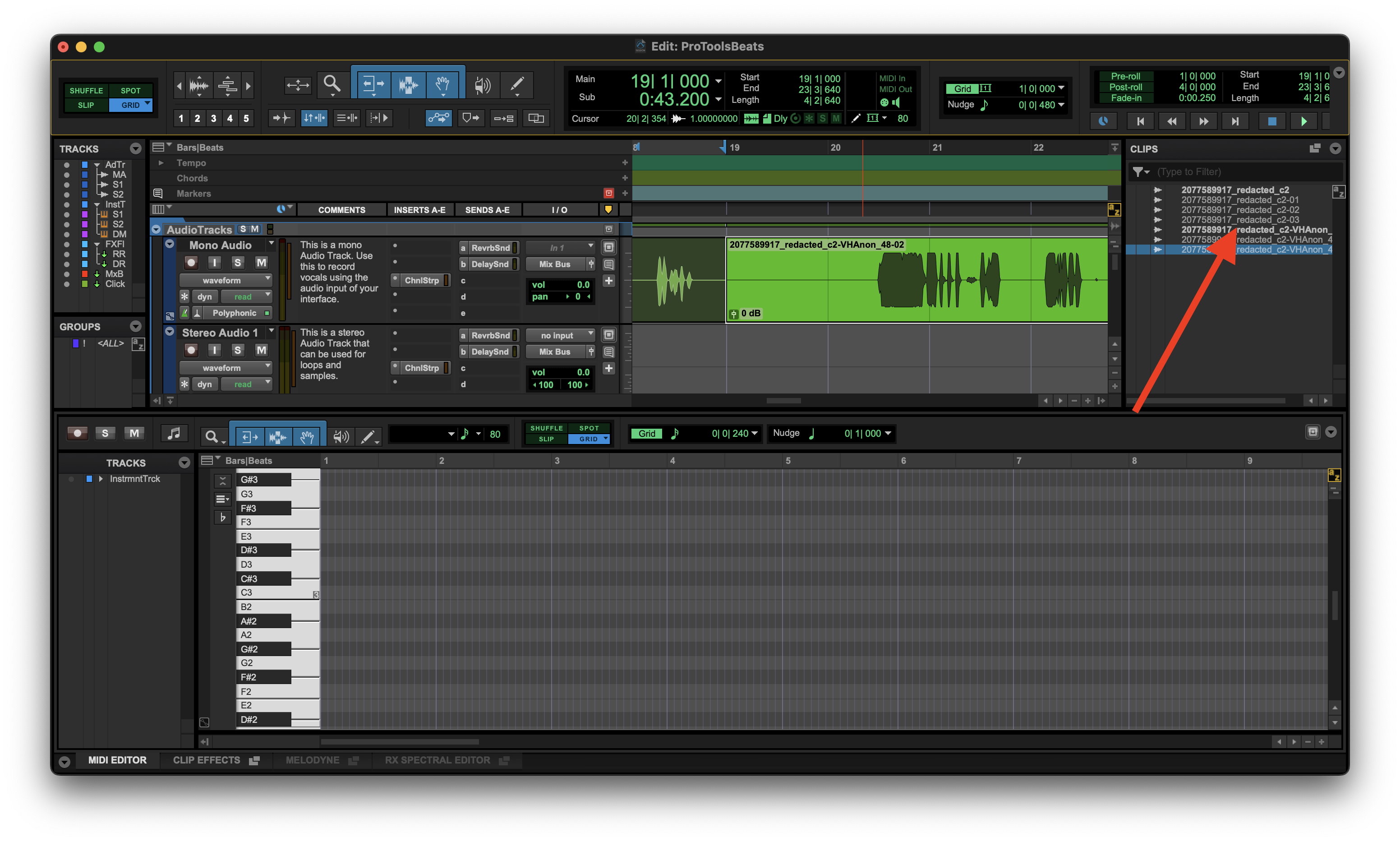 You can drag it into the timeline and listen to the result.
> 💡 *Hint:* You can render again if you wish to retry with different parameters — each anonymization will create a new clip in your **Clips** list.
***
## Plugin Parameters
Biometric age group to apply to the anonymized voice identity. Only used when `avatar` is not provided.
Allowed values:
* young-adult (18–39)
* middle-aged-adult (40–59)
* senior-adult (60+)
* same
* random
Target gender of the anonymized voice identity.
Allowed values:
* same
* opposite
* random
* f
* m
Target language of the audio file.
Allowed values:
* en
* fr
* it
* es
* de
Model variant for biometric voice print redaction.
Allowed values:
* mini 0.25 RTF
* advanced 0.75 RTF
Optional emotion to apply to anonymised identity.
* happy
* default
* sad
***
## Compatibility (AAX Plugin)
| Component | Requirement |
| -------------------- | -------------------------- |
| **Host** | Pro Tools 2024.10 or later |
| **Operating System** | macOS Sequoia 15 or later |
| **Architecture** | Apple Silicon and Intel |
### Cloud-connected processing
🔌 Requires an active internet connection to communicate with VoiceHarbor.ai API for anonymization.
You can drag it into the timeline and listen to the result.
> 💡 *Hint:* You can render again if you wish to retry with different parameters — each anonymization will create a new clip in your **Clips** list.
***
## Plugin Parameters
Biometric age group to apply to the anonymized voice identity. Only used when `avatar` is not provided.
Allowed values:
* young-adult (18–39)
* middle-aged-adult (40–59)
* senior-adult (60+)
* same
* random
Target gender of the anonymized voice identity.
Allowed values:
* same
* opposite
* random
* f
* m
Target language of the audio file.
Allowed values:
* en
* fr
* it
* es
* de
Model variant for biometric voice print redaction.
Allowed values:
* mini 0.25 RTF
* advanced 0.75 RTF
Optional emotion to apply to anonymised identity.
* happy
* default
* sad
***
## Compatibility (AAX Plugin)
| Component | Requirement |
| -------------------- | -------------------------- |
| **Host** | Pro Tools 2024.10 or later |
| **Operating System** | macOS Sequoia 15 or later |
| **Architecture** | Apple Silicon and Intel |
### Cloud-connected processing
🔌 Requires an active internet connection to communicate with VoiceHarbor.ai API for anonymization.